Code redemption
Redeem your Aon Pro Studio code.
Three steps: choose the Windows or Apple Silicon Mac app, enter your license key on the first launch, then add your own AI API keys. The whole setup takes about ten minutes.
No code yet? The download is the same file either way. Skip the key on the first launch and the app starts on the free Basic plan; you can enter a license code later from the main screen.
Windows 10 / 11 (64-bit) or Apple Silicon Mac (M1 or later, macOS 14 or later)
Before you start
Aon Pro Studio is a bring-your-own-key app. Your license covers the software only. AI generation runs on your own provider accounts, and those providers bill you directly for usage. An OpenAI API key is required — without one, AI generation will not run. See the API key setup guide and the API cost guide before you begin.
- Windows 10/11 (64-bit) or an Apple Silicon Mac (M1 or later, macOS 14 or later). Intel Macs, Linux, and browsers are not supported.
- Your license key. It is in your purchase confirmation email, or in your account on the store where you bought it.
- An OpenAI API key. Required for scripts, images, voices, and transcription. MiniMax and ElevenLabs are optional for higher-quality voices and image-to-video.
- An internet connection. Activation is verified online, and the app re-checks the license periodically.
Redeem your code
- Download and install. Use the button for your platform at the top of this page. Run the EXE on Windows 10/11, or open the DMG on an Apple Silicon Mac (M1 or later, macOS 14 or later).
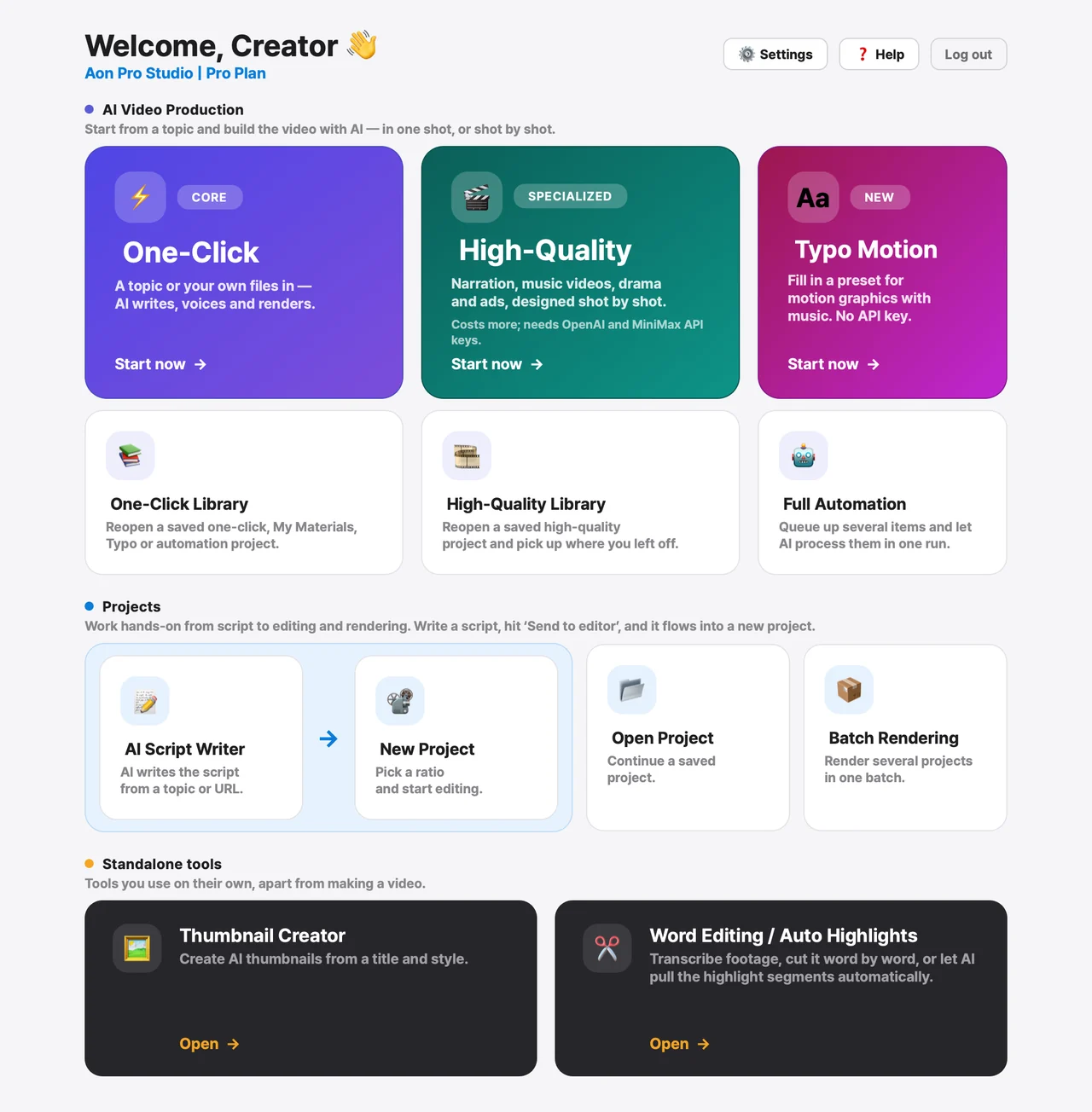
- Launch Aon Pro Studio. The activation screen opens on the first launch, with the license key field already selected.
- Paste your license key and click Activate License. Paste the whole key exactly as you received it. Spaces and letter case do not matter, but every character does. If the screen shows email sign-in instead, click Activate with license key to switch.
- Add your API keys in Settings. Open Settings, paste your OpenAI API key, and add MiniMax or ElevenLabs if you want their voices or image-to-video. The API key setup guide walks through each one.

Activation is confirmed with an "Activation Complete" message, and the app opens straight into the studio. You will not be asked for the key again on that computer.
Aon Pro Studio has a single plan — one code unlocks the entire app, with no add-ons or upgrade levels to buy. Each code activates one computer, so if you bought more than one, use each code on a separate computer.
If your operating system blocks the installer
Windows
Windows SmartScreen shows a blue "Windows protected your PC" dialog for installers it has not seen many times yet. This is expected for a newly released desktop app and is not a virus warning.
macOS
If macOS blocks the app, first confirm that you downloaded the DMG from this page. Then open System Settings → Privacy & Security and use Open Anyway only for the Aon Pro Studio app you just downloaded. The Mac build requires Apple Silicon (M1 or later) and macOS 14 or later.
- Confirm you downloaded the file from this page or another official Aon Pro Studio link.
- Click More info in the dialog.
- Click Run anyway to continue the installation.
If your antivirus quarantines the file instead, check the quarantine entry and restore it from there — do not turn protection off globally. On a company-managed PC, ask your IT administrator first. Still stuck? Email us at aonprostudio@gmail.com and we will help.
One code, one computer — and how to move it
Each license key activates on one computer. When you activate, the key is tied to that machine, so using the same key on a second computer returns "This license key is registered on another computer."
Got a new computer, reinstalled the operating system, or replaced your hardware? Go to the change computer page, enter your license key, and it is released immediately. No email request needed.
- You can change computers once every 30 days.
- After releasing, enter the same key on the new computer.
- The old computer stops working within 10 days, because the app checks in with our server on a schedule rather than instantly.
Transfers are for your own machines — a license is for one person's use and cannot be shared or resold. Need to change more often? Email aonprostudio@gmail.com and we will help.
Support
Moving to a new computer? Do it yourself on the change computer page — no email needed. For anything else about your code, activation, or the app itself, email aonprostudio@gmail.com. We reply within one to two business days. Including your license key and a screenshot of any error message gets you a faster answer.
Common activation errors
- "This license key does not exist." Usually a partially copied key. Copy the whole code from your purchase confirmation and paste it in one go.
- "This license key is registered on another computer." The key is bound to an earlier computer. Release it yourself on the change computer page.
- "This license key has been blocked." Email us — this usually follows a refund or a duplicate order.
- Activation fails with a network error. Activation needs internet access. Check a VPN, firewall, proxy, or company network policy, then try again.
New to the app? The getting started guide covers your first project end to end, and the FAQ answers what most people ask before setting up.