AI Video Editor · Every feature on the free Basic plan

Delete the words, and the video is cut

Start from a video file you have, or just a YouTube link. Delete words in the transcript and that stretch leaves the video; AI proposes edit concepts and cuts that fit the length you want. Pull Shorts out of a long video in the same pass. Transcription is free on your own computer once the app downloads its model.

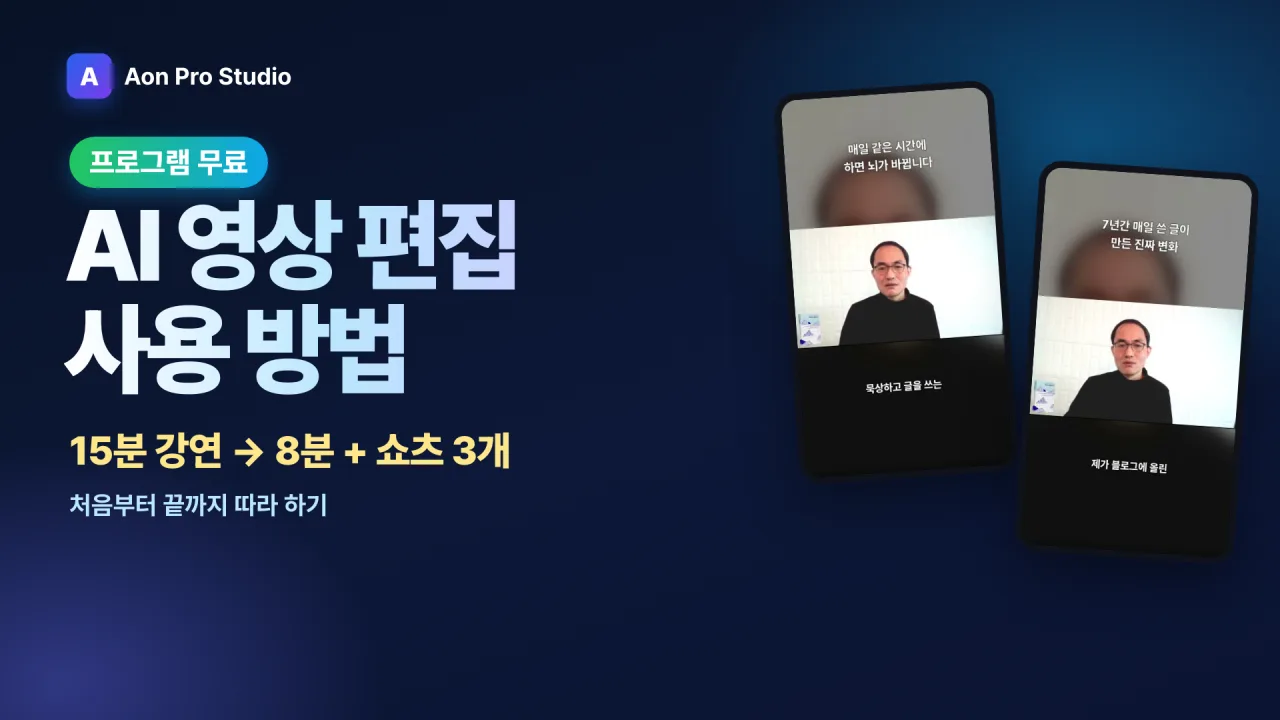
A 15-minute talk edited start to finish into an 8-minute cut, three vertical Shorts and a caption file. Every app screen is a real capture. Narrated in Korean; YouTube can translate the captions. Watch on YouTube

Translated captions

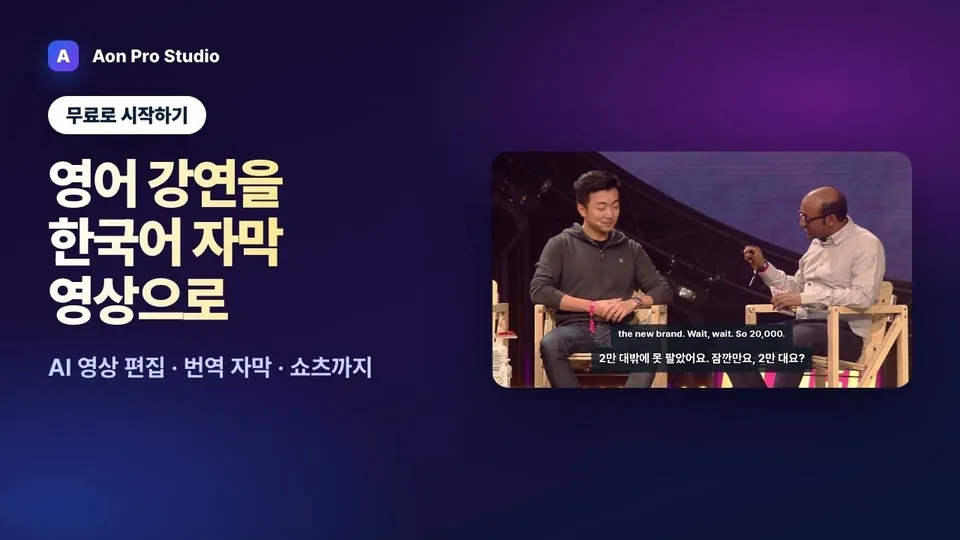
Turn an English talk into a Korean-captioned video

Translate the transcribed captions and burn them in as original, translation, or original + translation. Shorts get the same captions.

How-to video (Korean) · AI Video Editor · translated captions

Video not playing? Narrated in Korean; YouTube can translate the captions. Watch on YouTube

What the video produced

From one 15-minute talk

  • 8 minthe talk, cut down
  • 3 Shortsrendered in one go with titles, descriptions and hashtags
  • Captionsburned into the video and saved as SRT

Transcription on your own computer, free

Pick 'On this PC' (or 'On this Mac') in the transcription panel. The app downloads the transcription model (574 MB) once, then transcribes on your computer with no internet and no API key. However many videos you edit, transcription costs nothing.

Works on Windows (64-bit) and Apple Silicon Macs. Speed depends on the computer.

What it does

Cut from the transcript, refine with AI, ship the Shorts

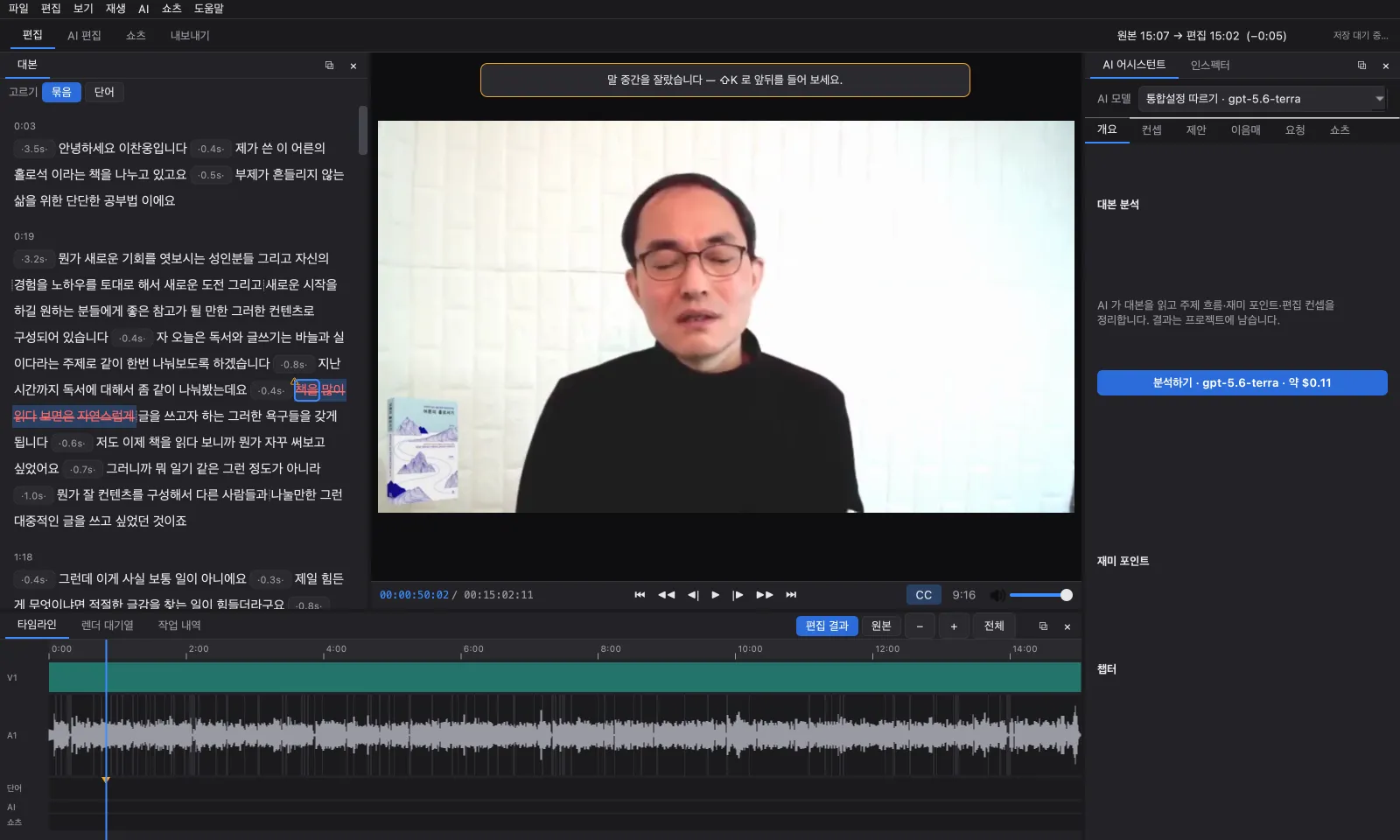
The AI Video Editor window. Deleted words in the transcript on the left are struck through in red, with the monitor in the middle and the timeline below
Deleted words stay struck through in the transcript, and that stretch drops out of the timeline. (Korean interface shown.)

1 · Cut from the transcript

Edit video like a document

Delete words in the transcript and the footage goes with them. A click picks the phrase between two pauses, so most cuts land cleanly in silence; you can also pick a single word.

  • Filler words and stutters are found for free and removed in one go; long pauses shrink at one of three levels.
  • Cuts that land inside connected speech gather under 'Cuts to check', where you listen around each and nudge it a frame at a time.
  • The familiar way works too: drag across the waveform on the timeline, delete, or drop edit points.
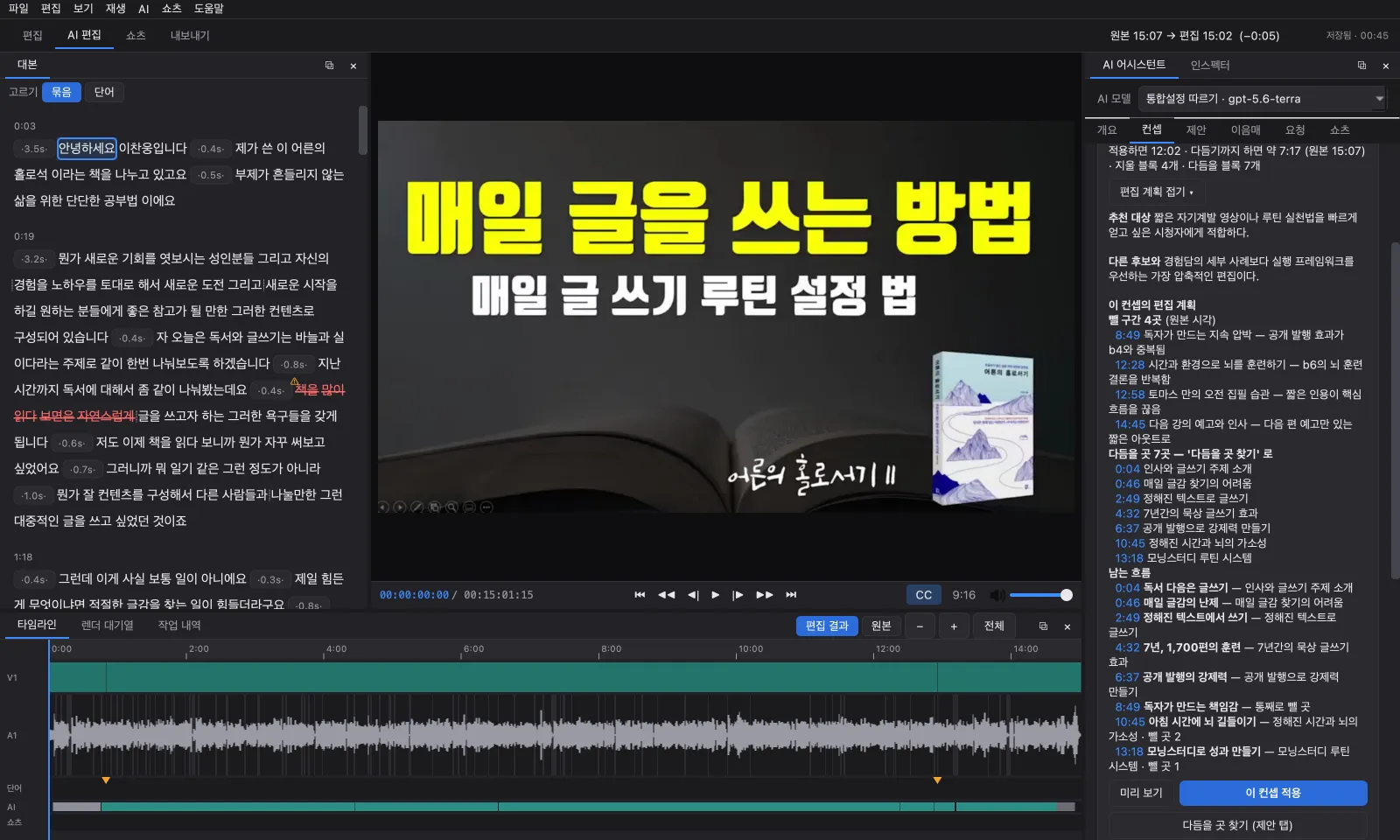
The Concepts tab of the AI Assistant shows an edit plan: who it suits, how it differs from the other concepts, what it cuts and why, and the flow that remains, each with timestamps
'Show the edit plan' lists what is cut, why, and what remains, with timestamps.

2 · AI analysis and edit concepts

AI proposes where the edit should go

AI reads the whole transcript and proposes several edit concepts and the cuts behind each. Give a target such as '20 minutes' and it fits to that, with the length worked out exactly by the app rather than guessed by the AI.

  • Cuts are graded must, recommended or optional, so you choose how far to go.
  • 'Find what to tighten' looks for more to trim inside the concept you picked.
  • After cutting, 'Check the joins' reads across each cut to find words left hanging or broken sentences and fixes them.
  • 'Check text' finds names and terms the transcription got wrong, using your glossary.
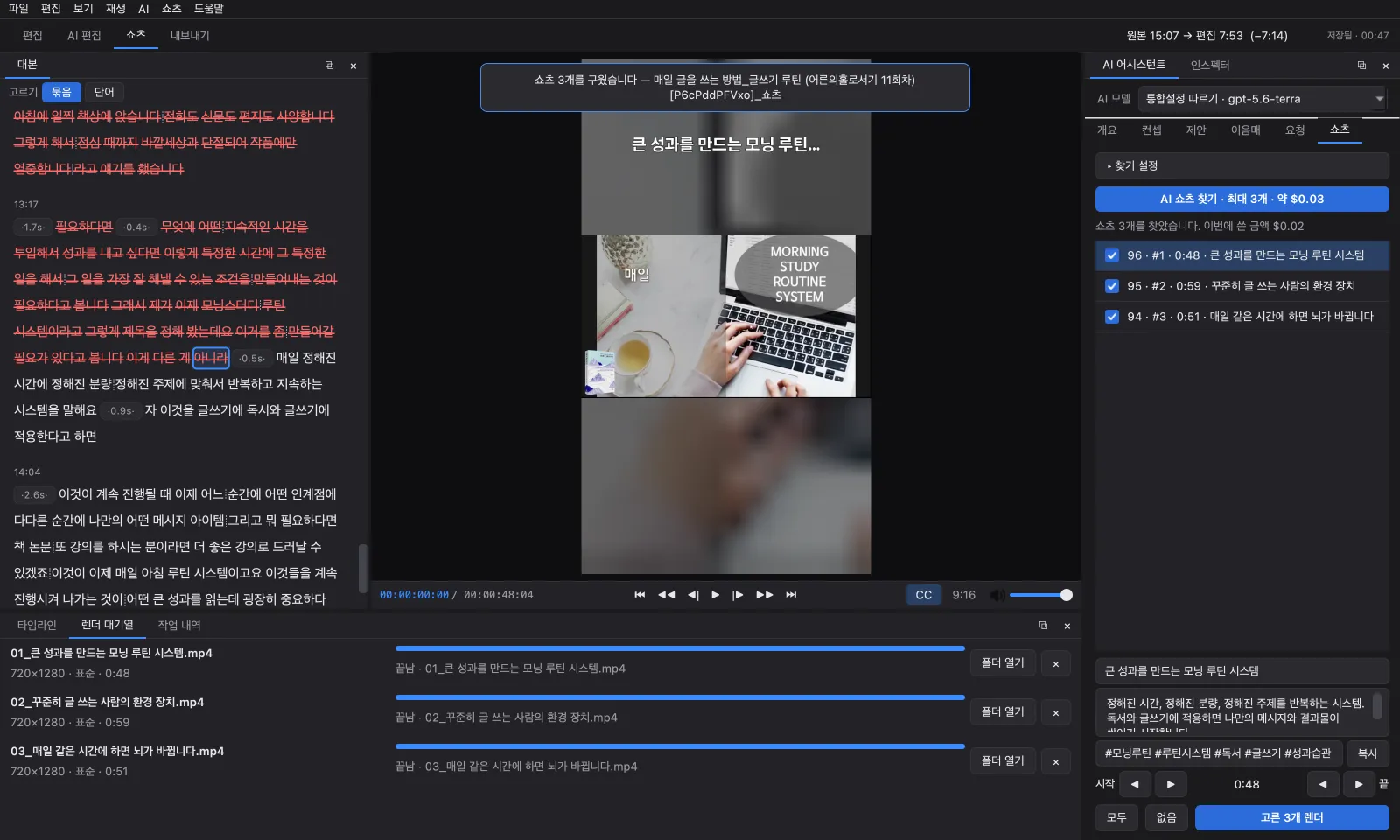
The Shorts tab with three AI-found Shorts ticked, all three marked done in the render queue below, and a 9:16 vertical preview in the middle
Three AI-found Shorts, picked and rendered together.

3 · Make Shorts

Up to 30 Shorts from one long video

AI finds the stretches of a long video that stand on their own and hands them to you with a title, description and hashtags. The ones you pick render together in the queue.

  • Vertical 9:16 sits on a blurred background or fills the frame with a crop whose position you can slide.
  • Nudge each Short's start and end to tidy it.
  • Titles, descriptions and hashtags are written in the video's language, ready to copy.
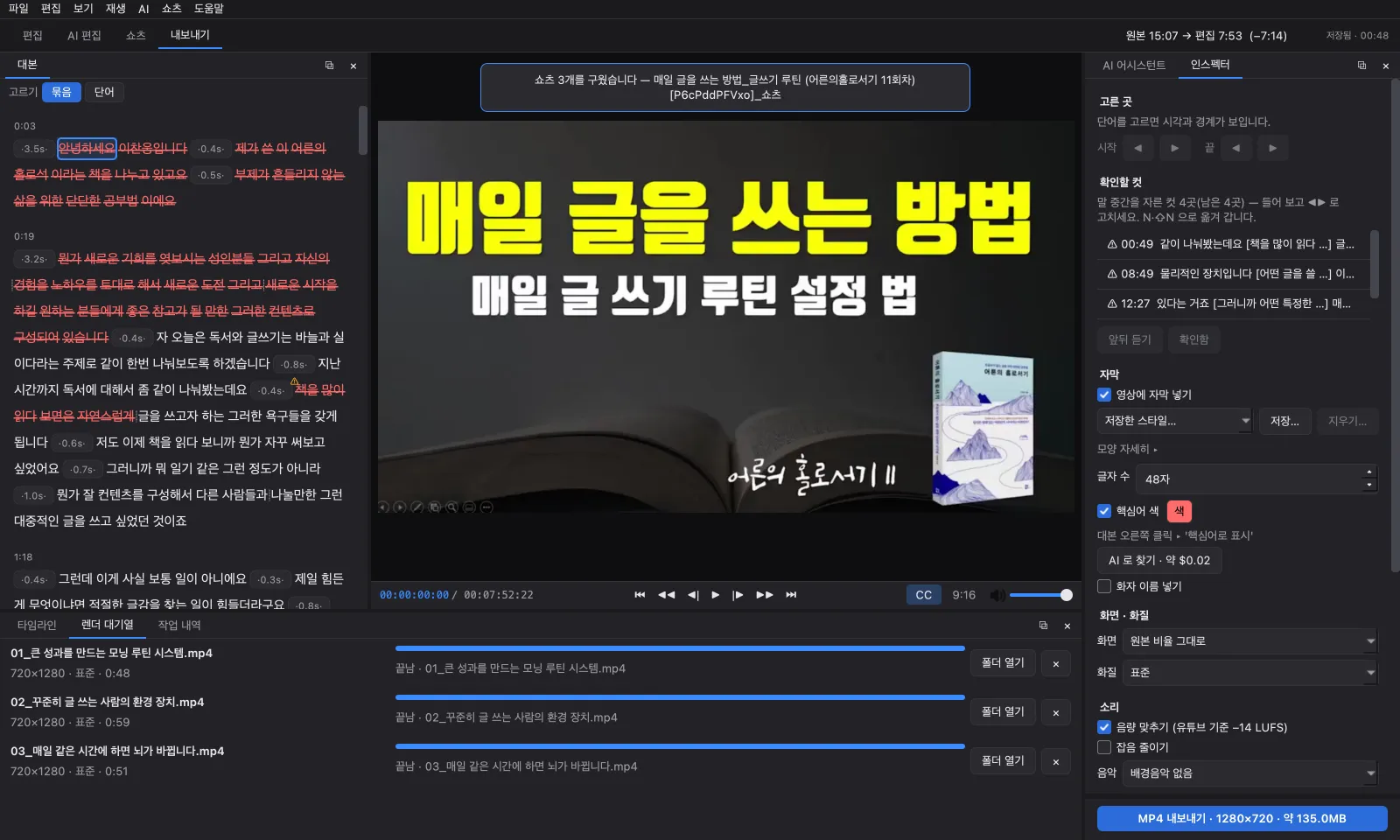
The Export tab. The inspector on the right holds caption, picture and quality, and sound settings, with the MP4 export button at the bottom
Set captions, quality and sound, then export MP4. The expected file size is on the button.

4 · Export

Ready to upload

The edit exports as MP4 at the source resolution, 4K included. Captions go into the picture, the sound is leveled, and the YouTube description is ready too.

  • Pick the caption font, colors, outline and how much shows at once; key words light up in color, variety-show style.
  • Captions also save as SRT, VTT or a transcript TXT, plus translated captions with the same timing (English, Japanese and more).
  • Apply translated captions — choose original, translation, or original + translation for the captions in the video, and Shorts get the same (words cut from the main edit have no translation and show in the original). After you edit, only the changed lines are translated again.
  • Audio is leveled to YouTube loudness (−14 LUFS), with optional background music and noise reduction.
  • Hand the edit to Premiere or DaVinci Resolve as XML or EDL, and copy a YouTube description with a summary and chapters.

Example footage on screen: 기록과미래, “매일 글을 쓰는 방법_글쓰기 루틴 (어른의홀로서기 11회차)” · Creative Commons Attribution license (CC BY)

And more

Built for the spots where editing usually stalls

Shortcuts you already know

Space to play, J · K · L for back 5 s, stop and play, I · O to mark a range, Ctrl+K (⌘K on a Mac) for an edit point. The app's help lists every key by task.

No file? Very long?

A YouTube link is enough to start. Videos over two hours are transcribed in 10-minute pieces that resume after a restart.

Split recordings, joined

'Join several videos' opens an intro, the main take and any split files as one video to edit together.

B-roll and speakers

Cover a passage with a video or photo and it follows the words through every cut. Mark who is speaking to pick only their lines or show names in captions.

One video, several edits

Save As keeps a 10-minute and a 3-minute cut side by side without paying for transcription again.

Cut without transcribing

Videos you don't transcribe still cut and export on the timeline, and screen recordings with no sound open too.

Anything that costs money shows the price on its button first

AI analysis and finding Shorts show an estimate before you click, and what you actually spent stays with the project. Transcription is free on your own computer, or pick OpenAI transcription for a little more accuracy. Prices by model are on API costs.

Worth a look next

Every feature, free Basic plan

The AI Video Editor, Shorts included, works in full on the free Basic plan with no license and no export resolution cap. The AI features need your own OpenAI API key.