API key setup
Create your OpenAI, MiniMax, and ElevenLabs API keys in minutes.
Aon Pro Studio uses a bring-your-own-key (BYOK) model: you pay a one-time $99 license, then pay AI providers directly only for what you actually generate. No monthly subscription, no bundled credit pool that runs out. This page walks you through creating each key, with direct links to every official page you need.
Links last reviewed: July 4, 2026. Provider screens can change.
1. Which keys do I need?
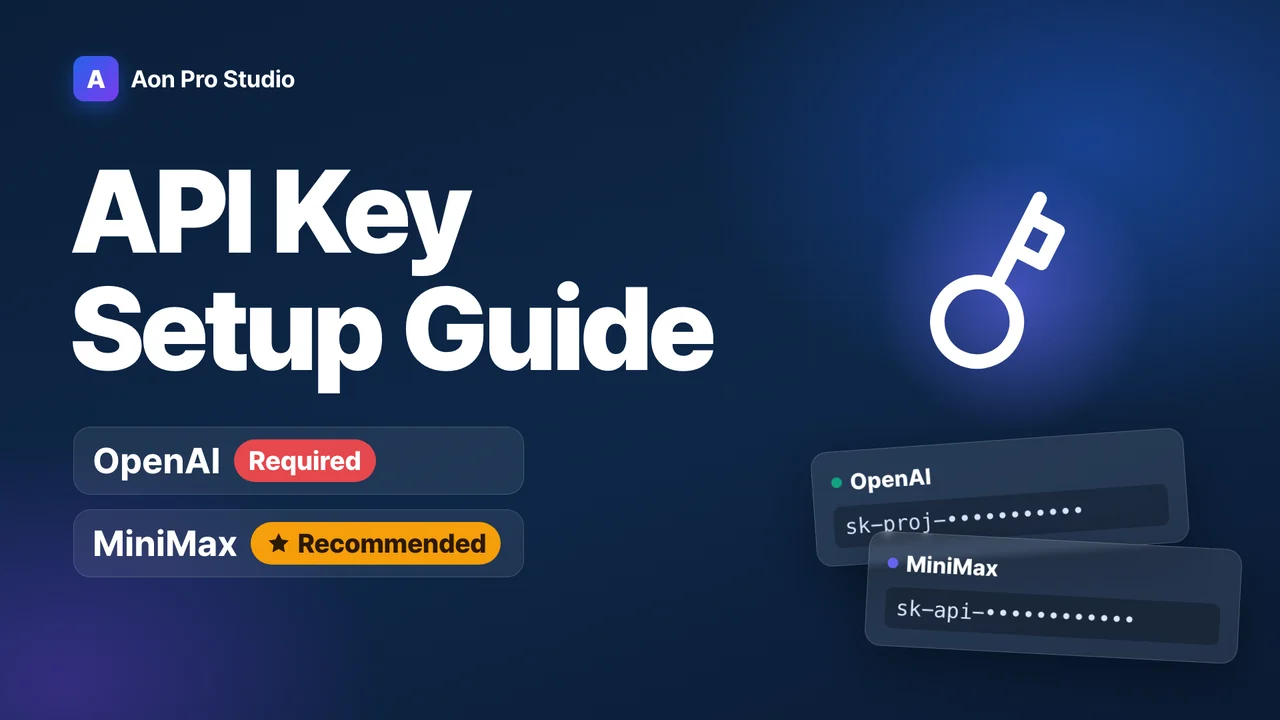
Four providers cover every AI feature in Aon Pro Studio, and you can choose from four TTS voice providers. Only OpenAI is required to get started - MiniMax, ElevenLabs, and Typecast are optional voice/video add-ons.
| Provider | Required? | What it powers in Aon Pro Studio |
|---|---|---|
| OpenAI | Required | Script generation, image generation, standard TTS voices, transcription, and AI highlight analysis. |
| MiniMax | Optional (recommended) | Higher-quality TTS voices, Hailuo 2.3 Fast, H3 and H3 Max image-to-video (I2V) generation, and the high-quality production mode. |
| ElevenLabs | Optional | Natural, expressive premium TTS voices, picked from a list inside the app. |
| Typecast | Optional | Voice-actor style TTS voices, especially strong in Korean (ssfm-v30 and v21), with free sample previews in the list. |
For most creators we recommend using two keys: OpenAI + MiniMax. MiniMax not only adds image-to-video, but is also very cost-effective (affordable) and offers great TTS quality, so pairing it with the required OpenAI key gives you the best balance of capability and price, and the high-quality production mode runs on the same two keys. ElevenLabs remains a great optional add-on for its signature premium voices, and Typecast for Korean voice-actor voices.
You can start with only an OpenAI key today and add MiniMax, ElevenLabs, or Typecast later when you want better voices, or MiniMax for motion. All four providers are pay-as-you-go or have a free tier: you deposit a small balance (even $5-$10 is enough to test) and are billed only for what you generate. See the API cost guide for example prices.
2. Create your OpenAI API key (required)
Step 1 - Create an OpenAI platform account
- Go to the OpenAI developer platform: platform.openai.com.
- Click Sign up and register with your email, Google, or Microsoft account.
- Verify your email and phone number if prompted.
Note: a ChatGPT Plus subscription is separate from the API. Even if you already pay for ChatGPT, the API uses its own pay-as-you-go billing.
Step 2 - Add billing credit
- Open the billing page: Billing overview.
- Click Add payment details and register a credit card.
- Purchase prepaid credits. $5-$10 is plenty for your first test videos. You can enable auto-recharge later if you want, but a fixed prepaid amount is the safest way to cap spending.
A new key on an account with $0 balance will return errors such as "insufficient_quota" - adding credit first avoids the most common setup failure.
Step 3 - Create the API key
- Open the API keys page: platform.openai.com/api-keys.
- Click Create new secret key.
- Give it a recognizable name, for example aon-pro-studio.
- Leave permissions set to All (Aon Pro Studio uses text, image, audio, and transcription endpoints).
- Click Create secret key and copy the key immediately. It starts with sk- and is shown only once - if you lose it, delete it and create a new one.
Step 4 - Optional but recommended: set spending limits
- Open Usage limits and set a monthly budget alert and hard limit.
- Track spending anytime on the Usage dashboard.
3. Create your MiniMax API key (optional, recommended)
Add MiniMax when you want higher-quality TTS voices, image-to-video (Hailuo 2.3 Fast · H3 · H3 Max), or the videos of the Ad, Story Drama, Music Video and Premium production modes (H3 or H3 Max). If you skip this now, everything else in the app still works with only OpenAI.
Step 1 - Create a MiniMax account
- Go to the international MiniMax platform: platform.minimax.io.
- Click Sign up / Log in and register with your email or Google account.
Important: use the international site platform.minimax.io. The China-region platform (minimaxi.com) uses separate accounts and keys that will not work with the international API.
Step 2 - Add billing credit
- Open your account menu and go to Billing / Balance in the user center.
- Add a payment method and top up a pay-as-you-go balance. $5-$10 is enough to test TTS and a few Hailuo clips; H3 is billed per second, so one ad, drama or music video can cost a few dollars.
- Current rates are on the official MiniMax pay-as-you-go pricing page.
Important: H3 and H3 Max video cannot be made with a subscription such as the Token Plan or with Credits (per MiniMax). A subscription's Subscription Key is not interchangeable with pay-as-you-go API keys, so give the app an API key from an account with a pay-as-you-go balance. Even with a paid subscription, an empty pay-as-you-go balance makes the video step of the Ad, Drama, Music Video and Premium modes fail with a 402 error.
Step 3 - Create the API key
- Open the API key page in your user center: MiniMax API keys.
- Click Create new secret key, name it (for example aon-pro-studio), and confirm.
- Copy the key and store it somewhere safe - treat it like a password. MiniMax keys are long tokens that start with eyJ, so expect a much longer string than an OpenAI key.
- Use the key from this API keys page, not the Subscription Key on the Account / Token Plan page.
4. Create your ElevenLabs API key (optional, recommended)
Add ElevenLabs when you want its natural, expressive AI voices alongside OpenAI and MiniMax. Voices are now picked from a list inside the app instead of a pasted Voice ID, and previews cost no credits. If you skip this now, everything else in the app still works with OpenAI, and MiniMax remains available for voices and image-to-video.
Step 1 - Create an ElevenLabs account
- Go to the ElevenLabs website: elevenlabs.io.
- Click Sign up and register with your email or Google account.
- Verify your email if prompted.
Step 2 - Choose a plan and check usage
- Open ElevenLabs pricing and review the plans. A free tier is available for testing, and paid plans add more monthly credits and commercial use.
- ElevenLabs bills by character/credit usage, so pick a plan that matches how much narration you expect to generate.
Step 3 - Create the API key
- Open your API keys page: ElevenLabs API keys (Profile / Settings → API Keys).
- Click Create API Key, give it a recognizable name such as aon-pro-studio, and confirm.
- Copy the key immediately and store it somewhere safe - treat it like a password. ElevenLabs keys usually start with sk_.
5. Create your Typecast API key (optional)
Add Typecast as a fourth TTS option when you want voice-actor style voices, especially for Korean narration. In the app's voice picker, open the Typecast tab to load the list and play free samples before choosing, or paste a Voice ID directly. The ssfm-v30 and ssfm-v21 models are selectable, and each request synthesizes up to 2,000 characters.
Step 1 - Create a Typecast account
- Go to the Typecast website: typecast.ai.
- Sign up with email or a Google account and verify your email if prompted.
Step 2 - Check the API plans
- Open Typecast API pricing. The free plan includes 15,000 credits a month; paid plans start with Lite at $15 a month for 200,000 credits.
- One character costs one credit, so pick the plan that matches the narration volume you expect. Paid plans switch to pay-as-you-go automatically once the monthly allowance is used up.
Step 3 - Create the API key
- Open the API key page: Typecast Developers → API.
- Create a new API key and give it a recognizable name such as aon-pro-studio.
- Copy the key immediately and store it somewhere safe - treat it like a password. Developer docs live at typecast.ai/docs.
6. Enter the keys in Aon Pro Studio
- Launch Aon Pro Studio and open Settings.
- Paste your OpenAI key into the OpenAI API key field. Watch for extra spaces or line breaks - keys pasted from email or notes apps often pick them up.
- Paste your MiniMax key into the MiniMax API key field if you created one.
- Paste your ElevenLabs key into the ElevenLabs API key field and your Typecast key into the Typecast API key field if you created them.
- Open the voice picker, load each provider's list in its tab, play free samples, and set a default voice. You can pick a voice even before adding keys.
- Save, then run a small test: generate a short script or a single image to confirm the connection before starting a full project.
Keys are stored locally on your computer by the desktop app. They are used only to call the providers you configured - Aon Pro Studio does not proxy your usage through its own servers or resell credits.
Connect YouTube upload (optional)
To upload finished videos straight to YouTube from the app, create your own upload key (a client JSON) in Google Cloud once, add it to the app and sign in (about 15 minutes). Videos go straight from your computer to your channel. Watch the setup video
- In Google Cloud Console, create a project and enable YouTube Data API v3.
- In Google Auth Platform, click Get started → Audience 'External' → Publish app (production). Skip it and sign-in expires every week.
- Add the
youtube.force-sslscope under Data Access, then create a Desktop app client under Clients and download the JSON. - In the app, open Settings › YouTube Upload, add the JSON file and sign in with Google. "How to set up" in the app has a shortcut for each step.
7. Keep your keys safe
- Treat API keys like passwords. Anyone with your key can spend your provider balance.
- Never share screenshots, screen recordings, or livestreams that show an unmasked key.
- Do not paste keys into chat rooms, public repositories, or shared documents.
- If a key leaks, delete it on the provider's key page immediately and create a new one - the old key stops working right away.
- Prefer prepaid balances and spending limits over unlimited auto-recharge so a mistake can never become an expensive surprise.
8. Troubleshooting key errors
- "Invalid API key" / authentication errors: re-copy the key from the provider page and check for leading/trailing spaces. OpenAI keys start with sk-; MiniMax keys are long tokens starting with eyJ. A long MiniMax key can pick up hidden line breaks when copied - paste it into a plain text field first if errors persist.
- "Insufficient quota" or billing errors: your provider balance is empty. Top up on the OpenAI billing page or the MiniMax user center.
- Rate limit errors: new accounts start with lower rate limits that increase as you spend. Wait and retry, or run smaller batches.
- MiniMax 402 / "insufficient balance (1008)": your pay-as-you-go balance is too low. Top up the pay-as-you-go balance in the MiniMax user center and check that the key from the API keys page is saved in Settings. H3 and H3 Max video cannot be made with a subscription such as the Token Plan or with Credits, so a pay-as-you-go balance is needed even if you pay for a subscription.
- MiniMax features unavailable: confirm the key was created on platform.minimax.io (international), not the China-region platform, and that it is saved in Settings.
- ElevenLabs voice unavailable: confirm the ElevenLabs key is saved in Settings, your plan still has remaining credits, and ElevenLabs is selected as the TTS provider for the project.
- Model access errors: some models require verified accounts or gradual rollout. Check the model page in your provider dashboard.
Still stuck? See the general troubleshooting checks in the getting started guide, or email aonprostudio@gmail.com.